2.7 KiB
Executable file
Section 03 - Lesson 11, 12 | Signals, Custom Signals
Notes
Signals
- messaging system
- way of communicating between nodes
connect basics
-
means of connecting
- ide
- code
- the node giving the signal has a list of everyone that connected
connecting via ide
-
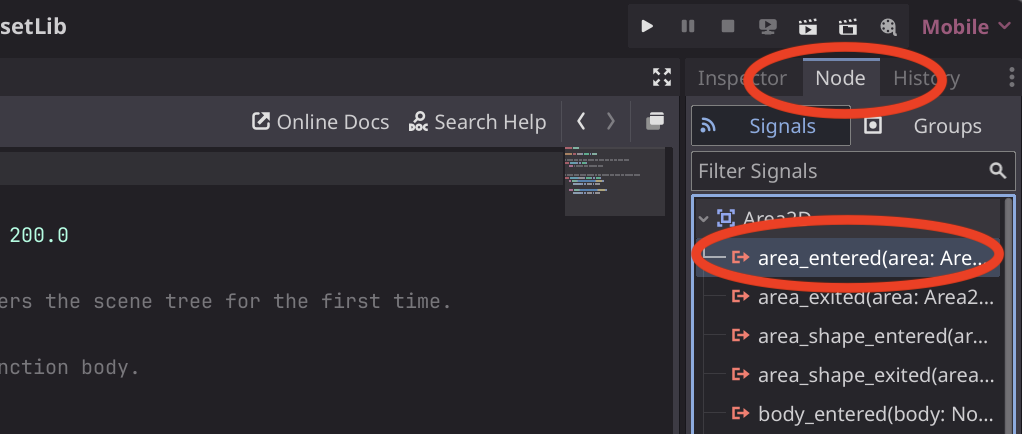
select Node panel on leftside, and then select the approrpiate signal
-
-
double click the selected filter
-
options available:
- from signal
- connect to script
-
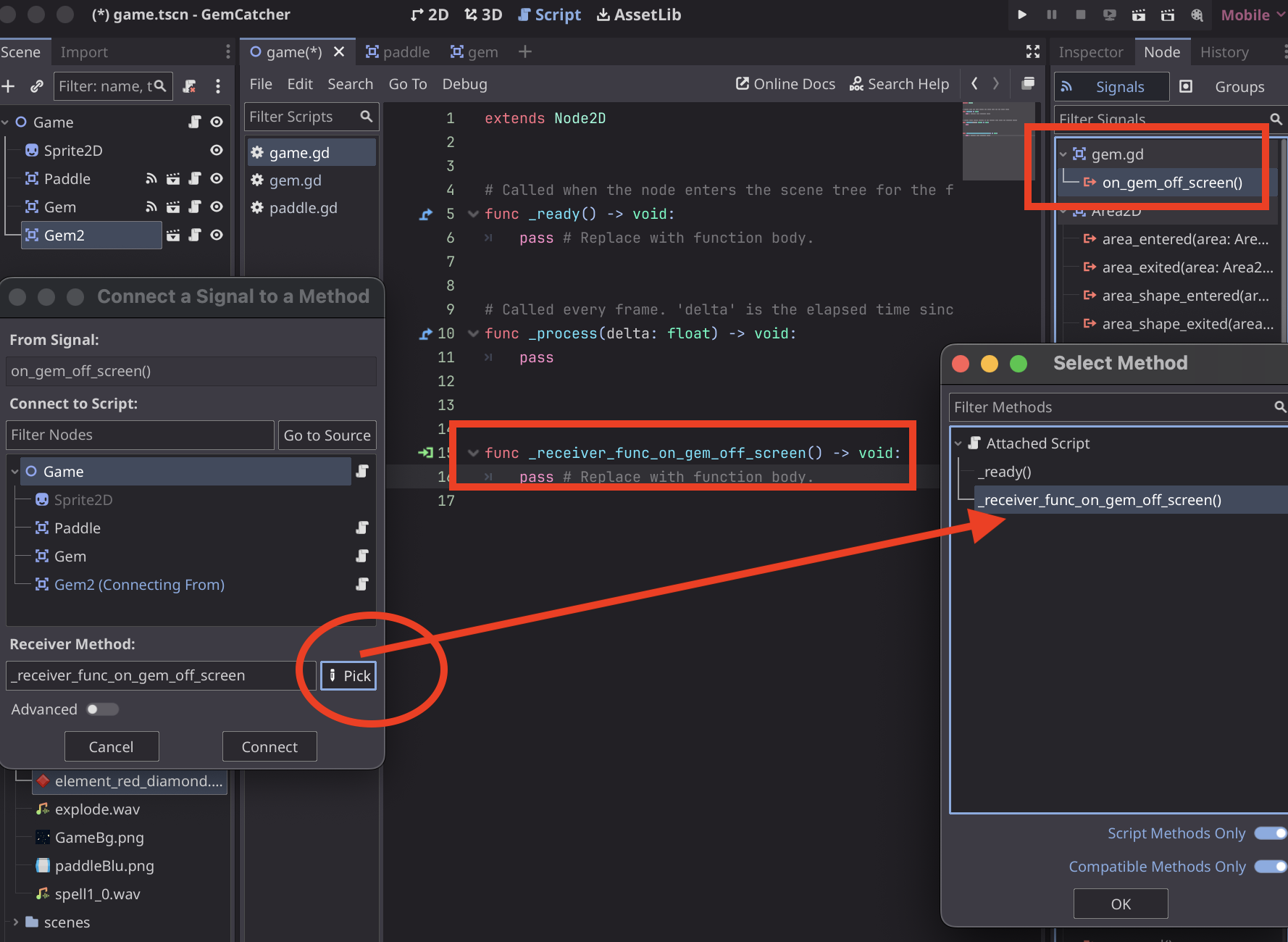
receiver method
- you can also click on "Pick" next to receiver method so that you can choose a different method that already exists
-
-
click connect and the boilerplate code will appear in the script you had selected in the signal creation pane above in (2)
-
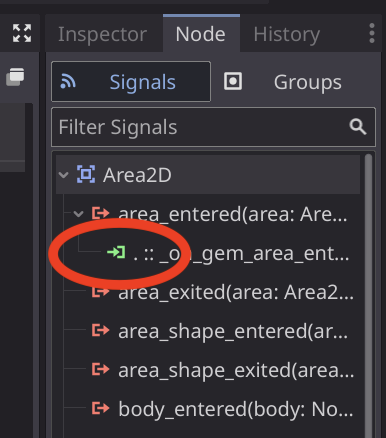
if you look at the node pane on the right and scroll to the signal, you'll see a green indicator showing that you have connected that signal (to something)
-
-
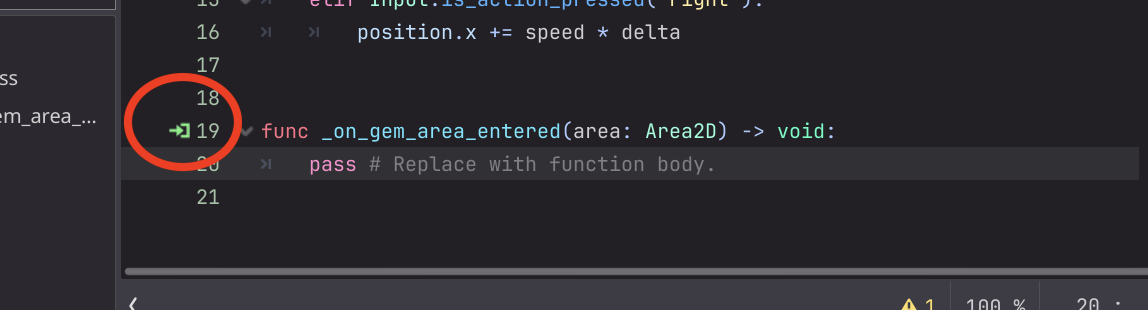
similarly, you can see a green icon by the function in the code editor
-
-
Custom Signals
declare the signal
to create a signal, use the following format:
signal name_of_signalactivate the signal
name_of_signal.emit()register to signal
- go to the scene you want to attach the signal to
- pick the node
- the signal should be available under Inspector->Node->Signals
-
connect the signal, and give the function a name you want, this will be your receiver function
-
if you want to attach another node to the same receiver function, use "pick" when connecting the signal
-
-
-
if you have more than one node connected to a receiver function you can see which are connected by clicking on the green icon next to the receiver function
-