
3.5 KiB
3.5 KiB
Notes on Lesson 04 - Layer Mask | PiXimperfect
Downloads
- Practice Files: https://bit.ly/44aHY3c
Notes
the purpose of the mask is to hide parts of the image
setup a mask
- select the text
-
click on the mask button in the layers pane
- this will add a white square to the right of the text entry
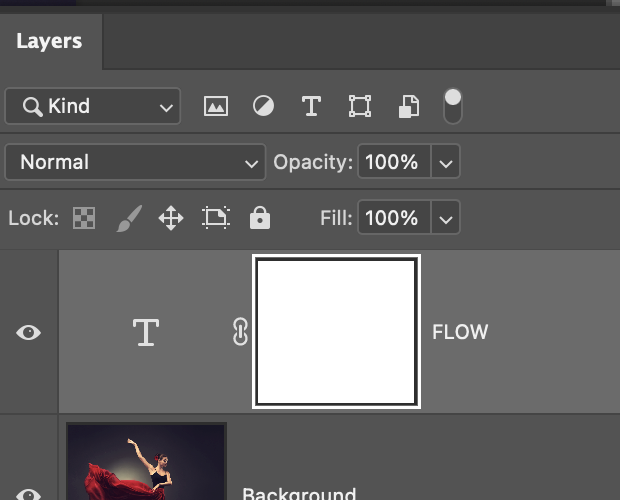
The concept of a layer mask is that
- black areas are hidden
- white areas are shown
so select the layer mask and draw with black on the center panel to hide or show areas
to hide and show the layer mask
- hold the alt/opt key and click on the layer mask
- you can also click on any other layer, or outside the layer mask to hide it
reason 1: non destructive abilities
while you can certainly delete parts of an image and putting something else in it's place, you cannot undo that deletion so easily.
- select the area you want to show
- hit the mask button (this will automatically hide everything not selected)
hide the selected area (2 methods)
method 1
- selecte the area you want to hide
- select->inverse
- hit the mask button
method 2
- select the area you want to hide
- ALT/OPT + mask button
compatibility with non raster layer
-
place an image on top of a background
- Photoshop->Settings->General->Always Create Smart Objects When Placing
- the image is going to be selected as a mask
-
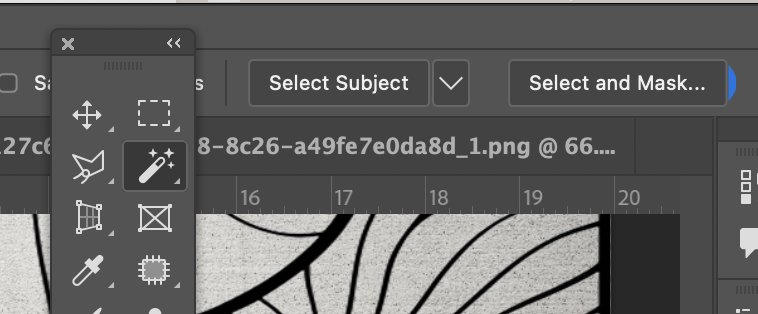
go to the backround layer, select subject the subject
- note that "select subject will be highlighed"
-
return to the imposed layer and create a negative mask
- alt+mask button on layers
-
at this point you can blend the layers if you like
- double click top layer, you'll open to blending options
-
move the sliders in underlying layer to get what you want
- if you hold down the ALT key, and hover over the slider, you can split and drag it
Playlist
- 00:00 What Are Layer Masks?
- 02:58 Important Downloads & Announcements
- 03:29 Why Use A Layer Mask?
- 03:47 Reason 1: Non-Destructive Abilities
- 07:54 Reason 2: Compatibility with Non-Raster Layer current
- 11:26 Linking & Unlinking Layer Masks
- 13:33 Turning Off and On
- 14:28 Mask Properties: Feather
- 17:41 Mask Properties: Density
- 19:44 Duplicate Masks
- 21:35 Problem with Copying Masks
- 23:37 Double Masking
- 26:44 Image as a Mask
- 28:28 Concept Recap