
3.3 KiB
3.3 KiB
Section 01 - Lessons 03 | Facebook for Business
Notes
Facebook For Business
create / manage
- ad accounts
- facebook pages
- instagram accounts
organize
- keep analytics and reporting seperate for proper tracking
- request access to other pages or ad accounts
- assign people to work on them
https://business.facebook.com/adsmanager https://business.facebook.com/settings
meta business vs facebook business
- meta business suite
-
facebook business account
- access via adsmanager
creating a business account
- goto adsmanager above
- sign in with personal profile
- if you are directed to the Meta Business Suite go instead to Facebook Business Account settings
creating an ad
-
in order to create an ad you need
- Facebook Page
- Ad Account
- People


methods to create a page
-
business settings
- click on the menu in the upper right corner of the sidebar
- then click on Business Settings under 'shortcuts' in the 'All tools' panel that pops up
-
now select 'Pages' under 'Accounts' in the Sidebar
-
add a page
- owner
- admin
-
request access to a page
- if you are not the admin of the page
- create a new page
-
-
personal profile
- login to your personal profile and go to the facebook page creation url
- https://www.facebook.com/pages/creation
what is an ad account
- create ad campaigns
-
group all specific ad activity
- different ad campaigns
- ad sets
- ads
- billing information
The PixelRule
-
basic rule
- ONE Facebook Pixel PER Ad Account
- ONE Facebook Pixel PER Facebook Page/Website
- ONE Facebook Page/Website PER Ad Account
- treat each new ad account as a new pixel to pair with a new website
create an ad account
-
Business Settings->Accounts->Ad Account
- add existing
- request access
- create new
- best to start fresh and create a new one
add people
- allows you to invite people via their email addess
- unless it's a cofounder, keep the person as an employee
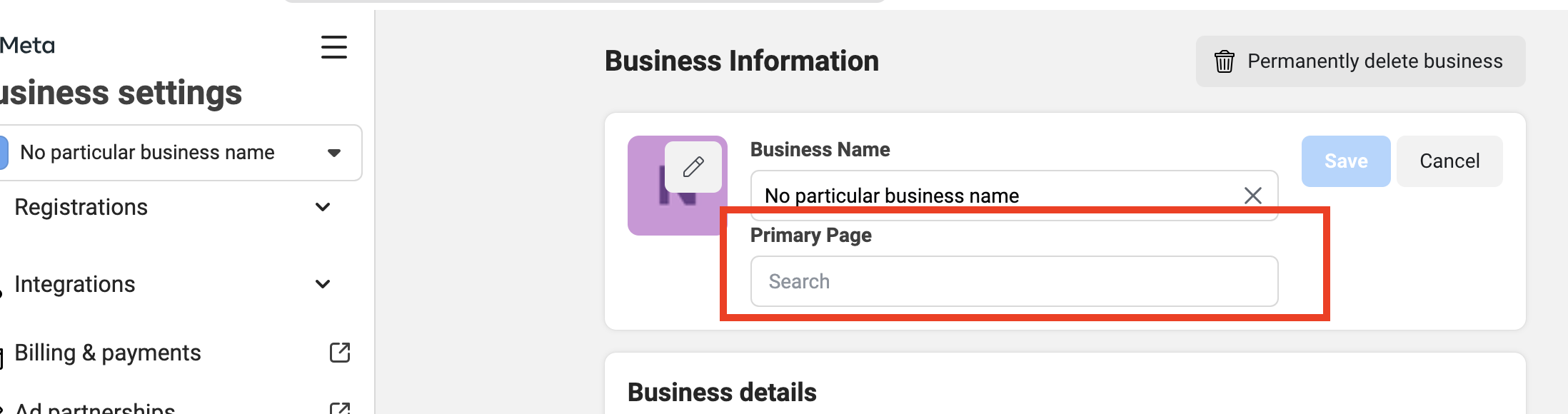
set Facebook Page as Primary Page
-
got to Business Info page
- https://business.facebook.com/settings/info
-
click the Edit button

-
type in the Facebook Page name in the Primary Page field and hit save
create an ad
- go to Business Settings->Accounts->Ad Accounts
- select the ad account
-
then click on "Open in Ads Manager"

- this will take you to the adsmanager for that ad account