
5.2 KiB
Executable file
Section 02 - Lessons 08d | Settings
- Links
- Notes
Links
Notes
Settings->Privacy
- go to the page
- from the "Manage Page" side bar, click on settings
- this will take you to "Settings and Privacy"
How People Find And Contact You
-
How People find and contact you
- allow search engines outside of facebook to link to page
- allow page to be recommended to people looking at similar pages
-
Messaging
- allow people to message your page
Posts
-
who can see your future posts
- Public
-
allow comment summaries on your posts
- generated using meta AI
-
allow visual search on your posts
- meta will find other content on facebook related to your posts, not necessarily your own
Stories
-
who can see your stories
- default Public
-
allow others to share public stories to their story
- will include your name and a link to your original
- allow people to share your stories if you mention them
- allow followers to reply to your stories
-
archiving your stories
- archive photos and videos after they disappear from your story
Reels
- who can see your reels
Followers and Public content
- who can follow my page
-
who can see your followers on your timeline
- page follower lists are public
-
who can see the people, pages and lists you follow
- default Public
- the people you follow can see you are following
-
Public post notifications
- default Public
- Public page info
- show most relevant comments first
- off facebook previews
- hide posts and comments with profanity
- hide comments containing certain words from your page
- country restrictions
- age restrictions
Messaging
-
go to meta business page home:
- https://business.facebook.com/latest/home
-
then go to inbox
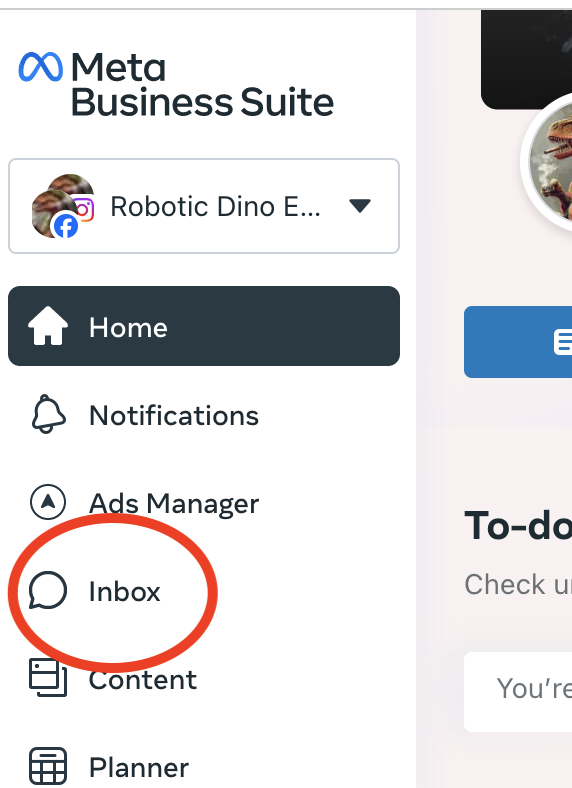
what you can respond to
- messenger
- facebook comments
- instagram comments
Content Creation and Planning
- go to facebook page
- click 'create post' field
notes
- visual content is 40x more likely to get shared
- videos get 135% more than just images
- always provide a call to action
pin a facebook post
- you have an option to pin a post to the top of your facebook feed
- click on three dots
- click 'pin post'
share relevant content
- find content on another page youlike
- click the share button below post
- select "share now"
- if you click "share to feed" thsi will share the post plus your own custom text
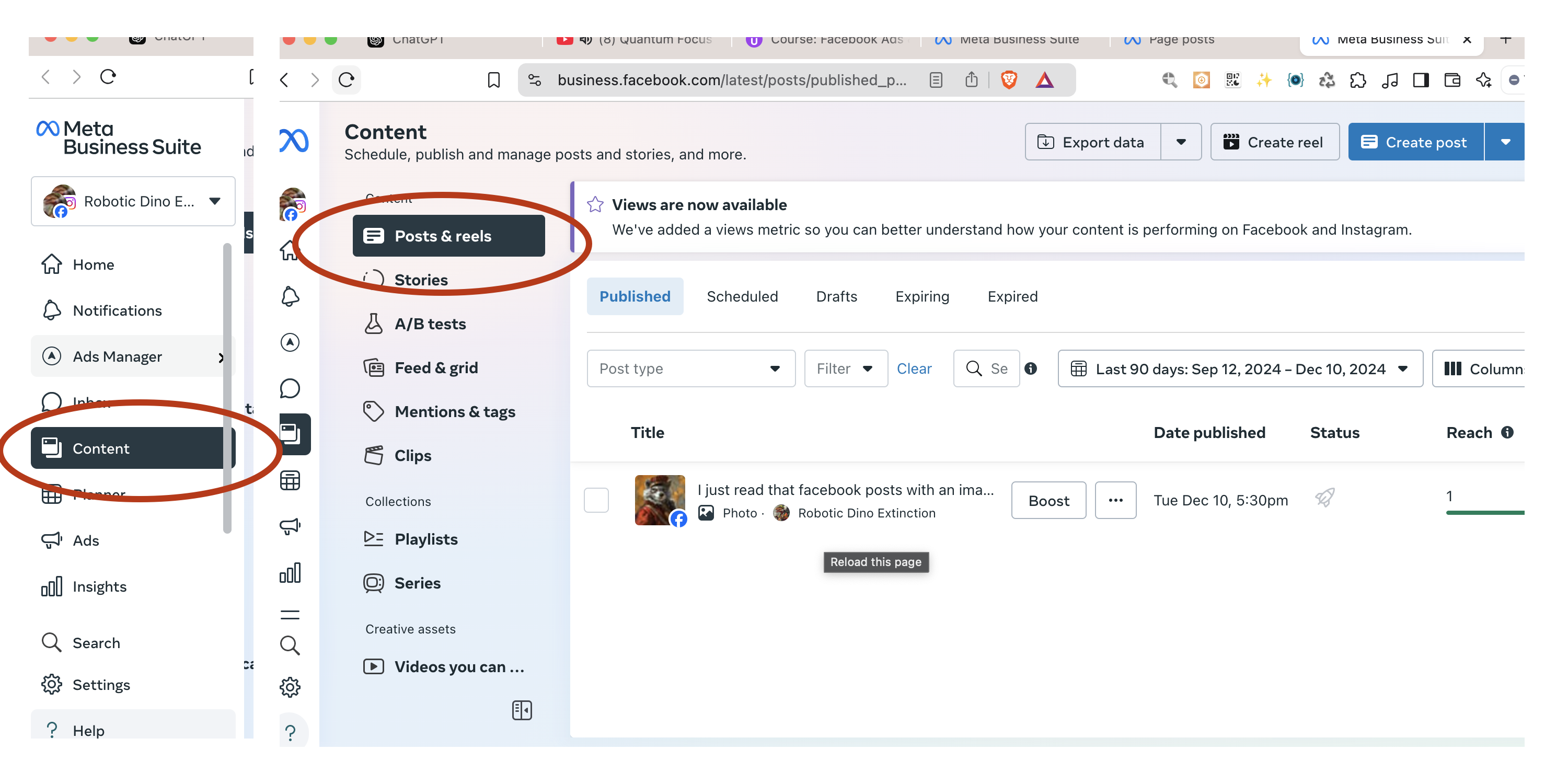
create & schedule posts via meta business suite
- go to meta business suite
-
on left side find "Planner"
- facebook and instagram
- ads
- posts
- stories
-
another way is via content
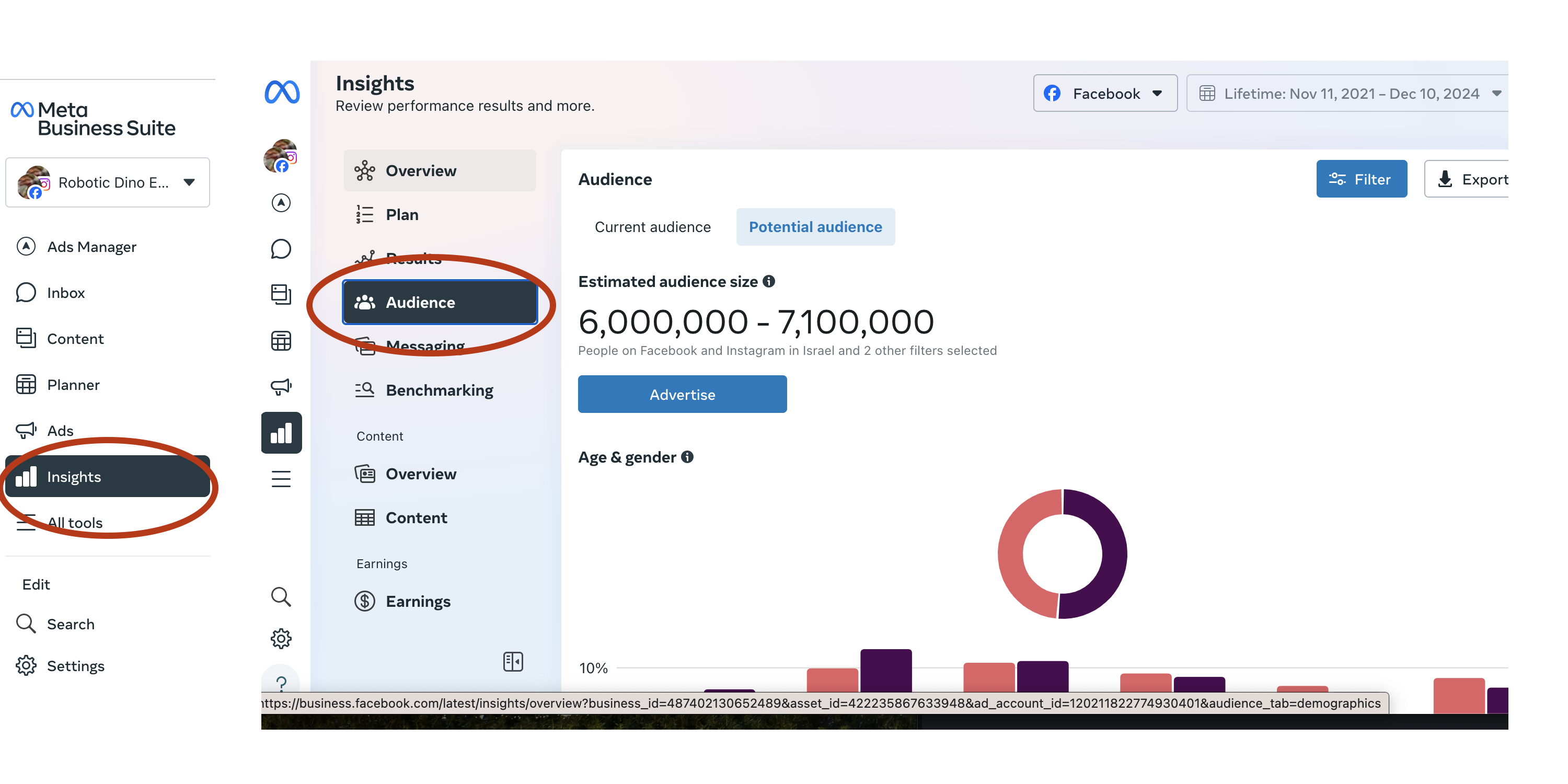
Follower Insights
-
meta business suite -> Insights - > Audience
- age demographics
-
gender
-
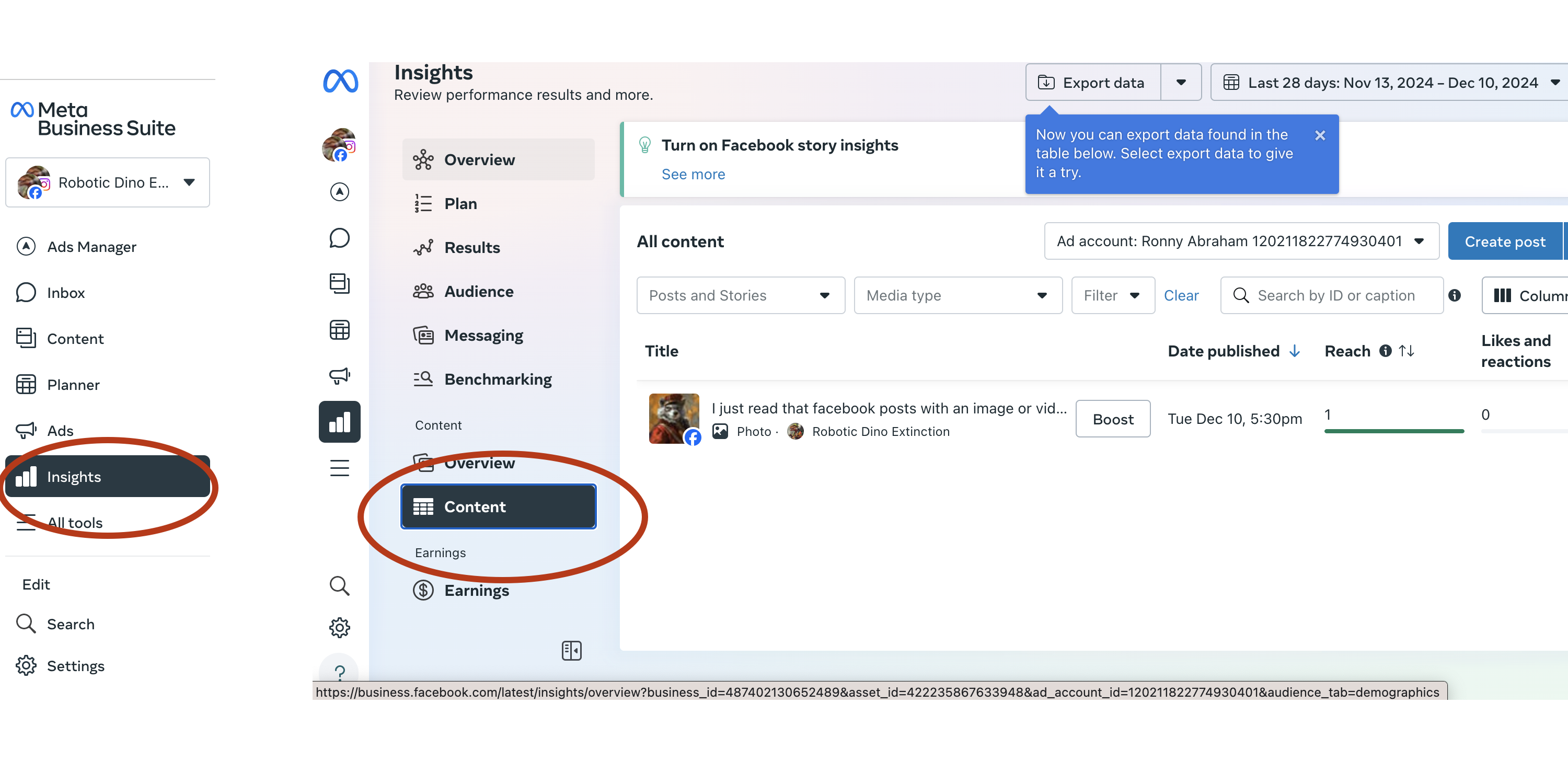
meta business suite -> Insights -> Content
- allows you to see how all your posts have done
-
best times for posting, etc
advertising
invite friends to like your page
- click the … menu, then 'invite friends'
pay for page likes
- https://business.facebook.com/adsmanager
- Create Ad button -> select Engagement campaign objective -> on the Ad Set under Conversation Location select "Facebook Page"
add an employee to the facebook page
- only an admin can assign roles orchangeroles
- 'facebook access with partial control' is a common role to assign
how to add someone
how to give someone access to your page from facebook
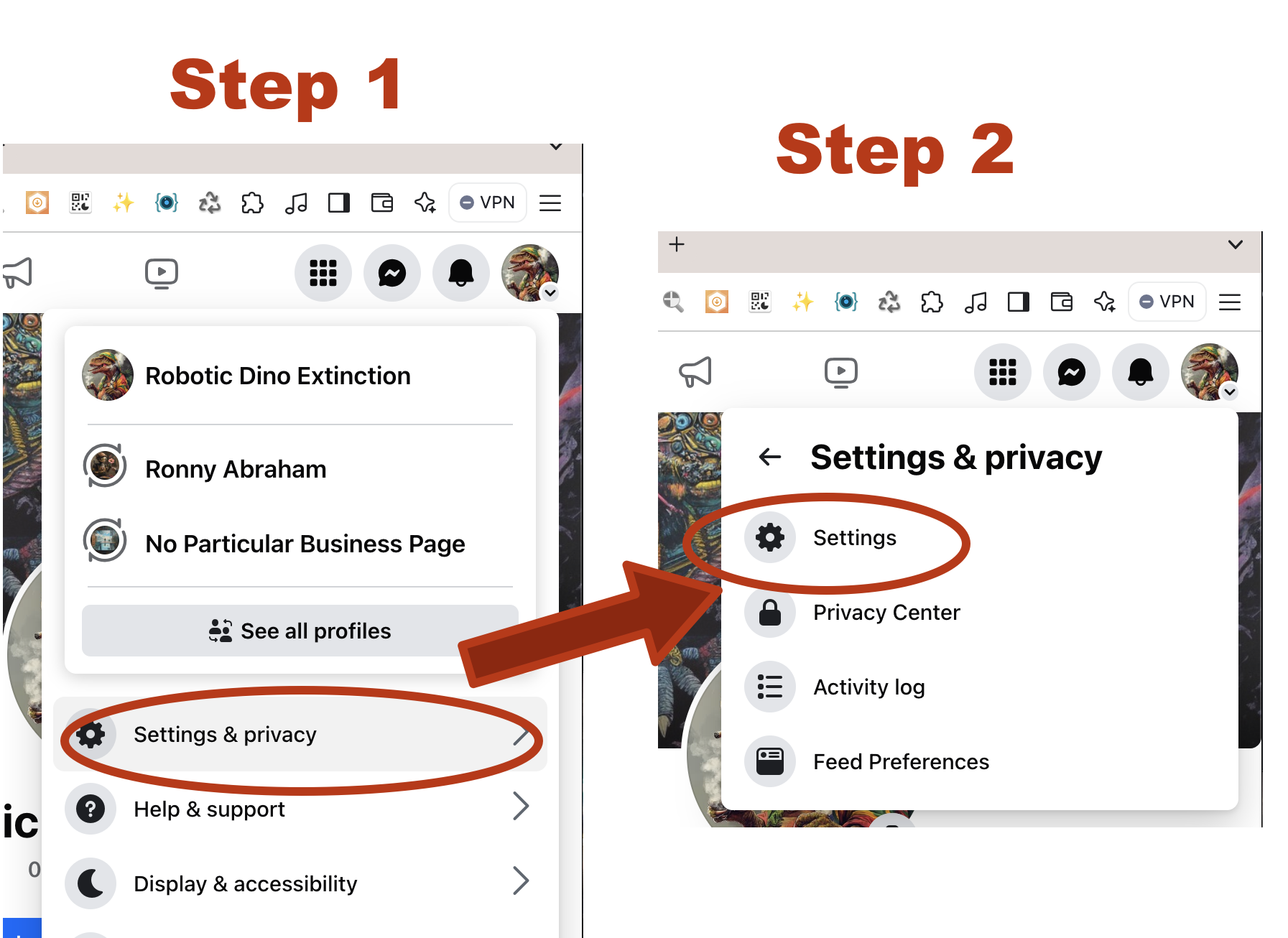
- from Page Feed, click profile pic in top right
-
Click Settings and privacy and then select Settings
-
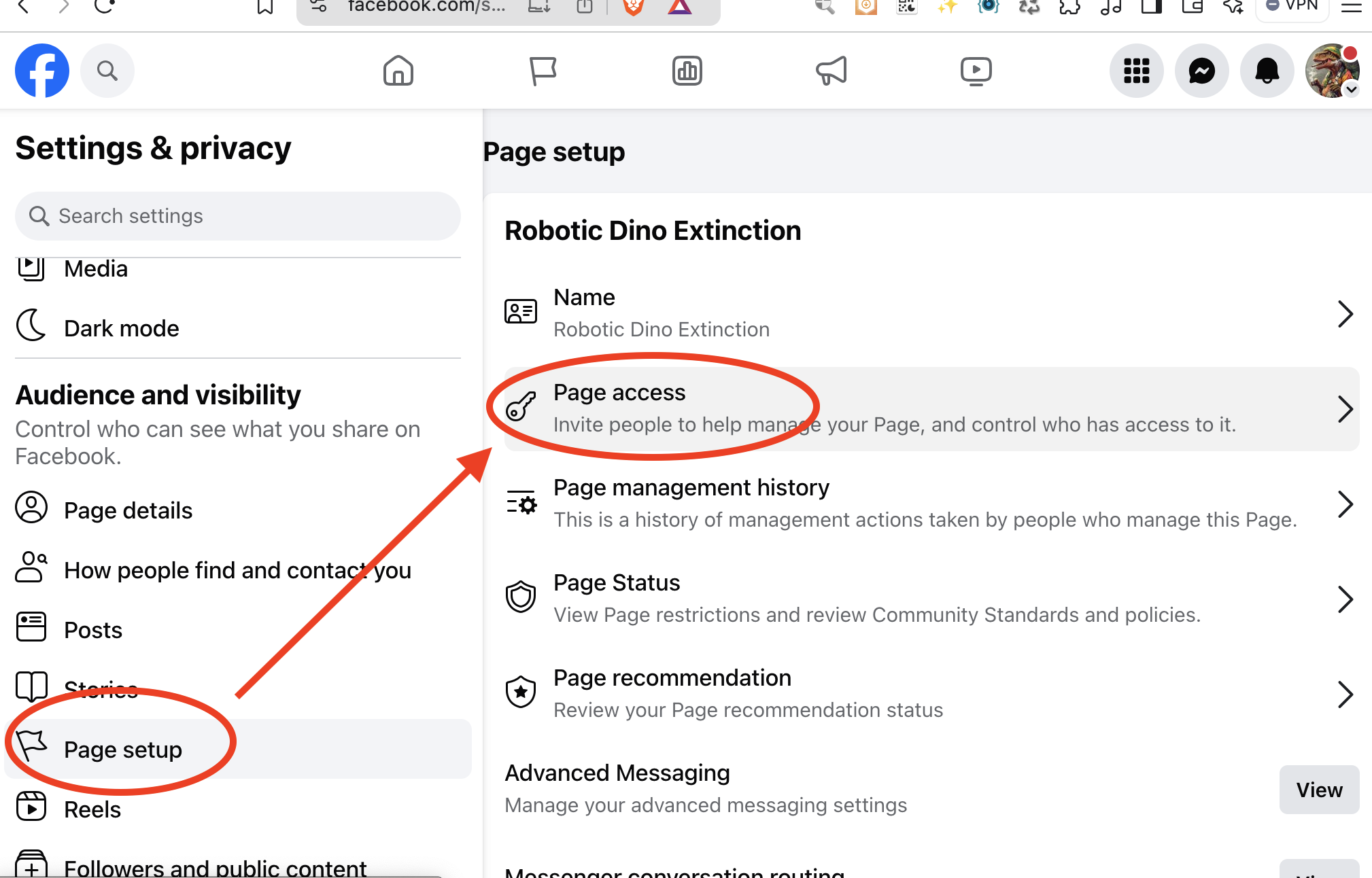
in the left menu, click Page setup, then click Page access
-
Find People with full control, then click Manage
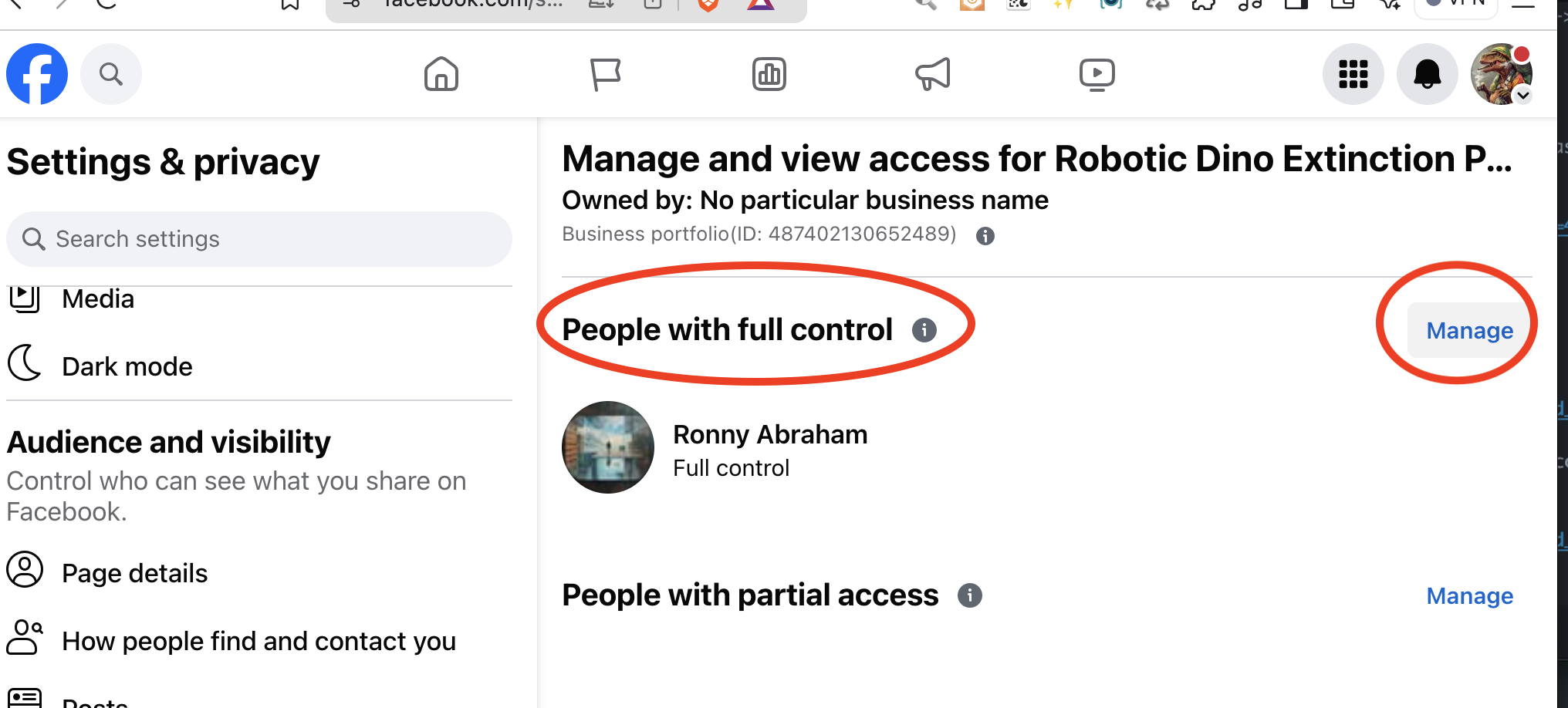
- a dialog will pop up, click Go to Meta Business Suite
-
Click Assign People
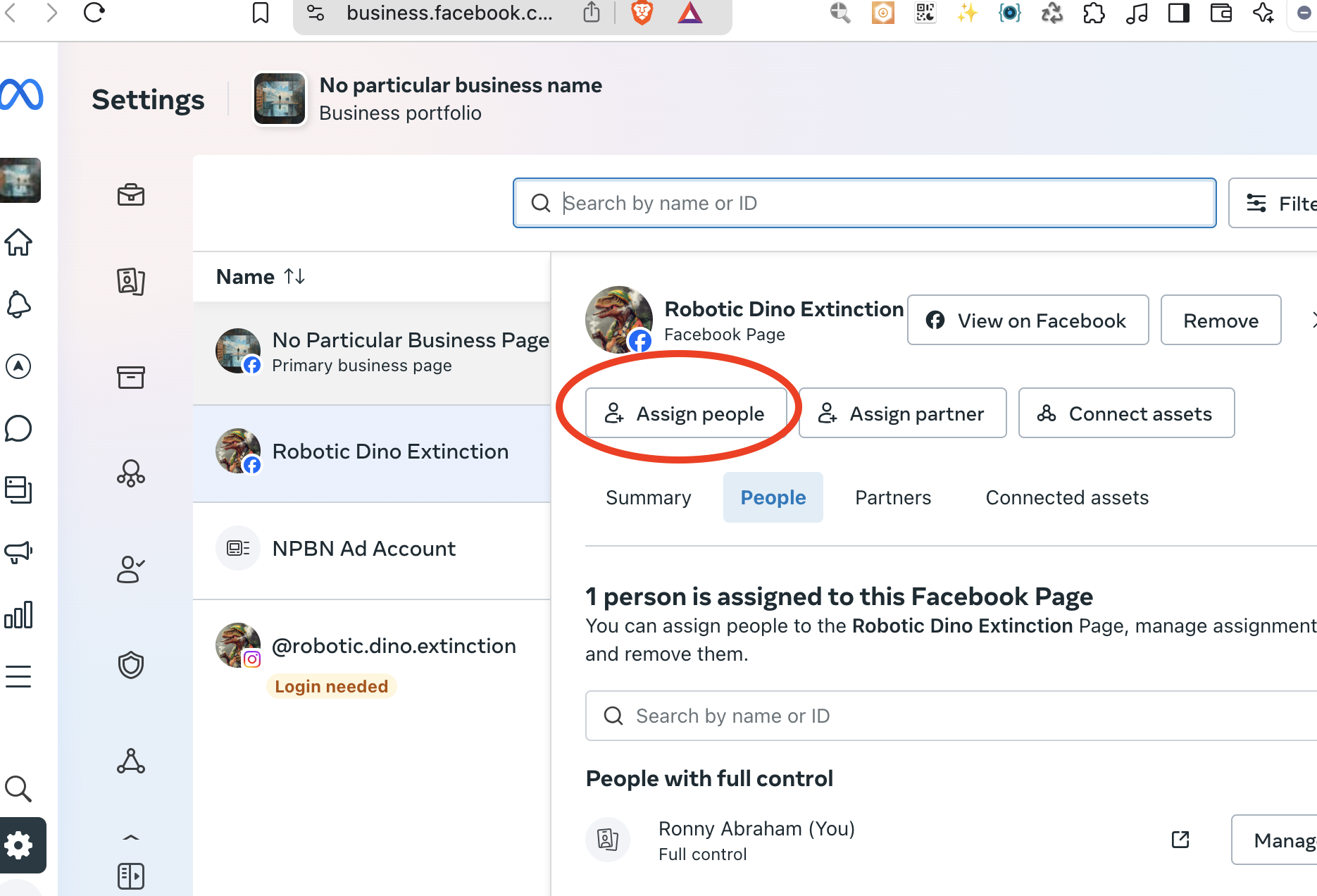
- Under Add People, scroll down and click Add person
-
Enter the email address of the person you want to add and click Next
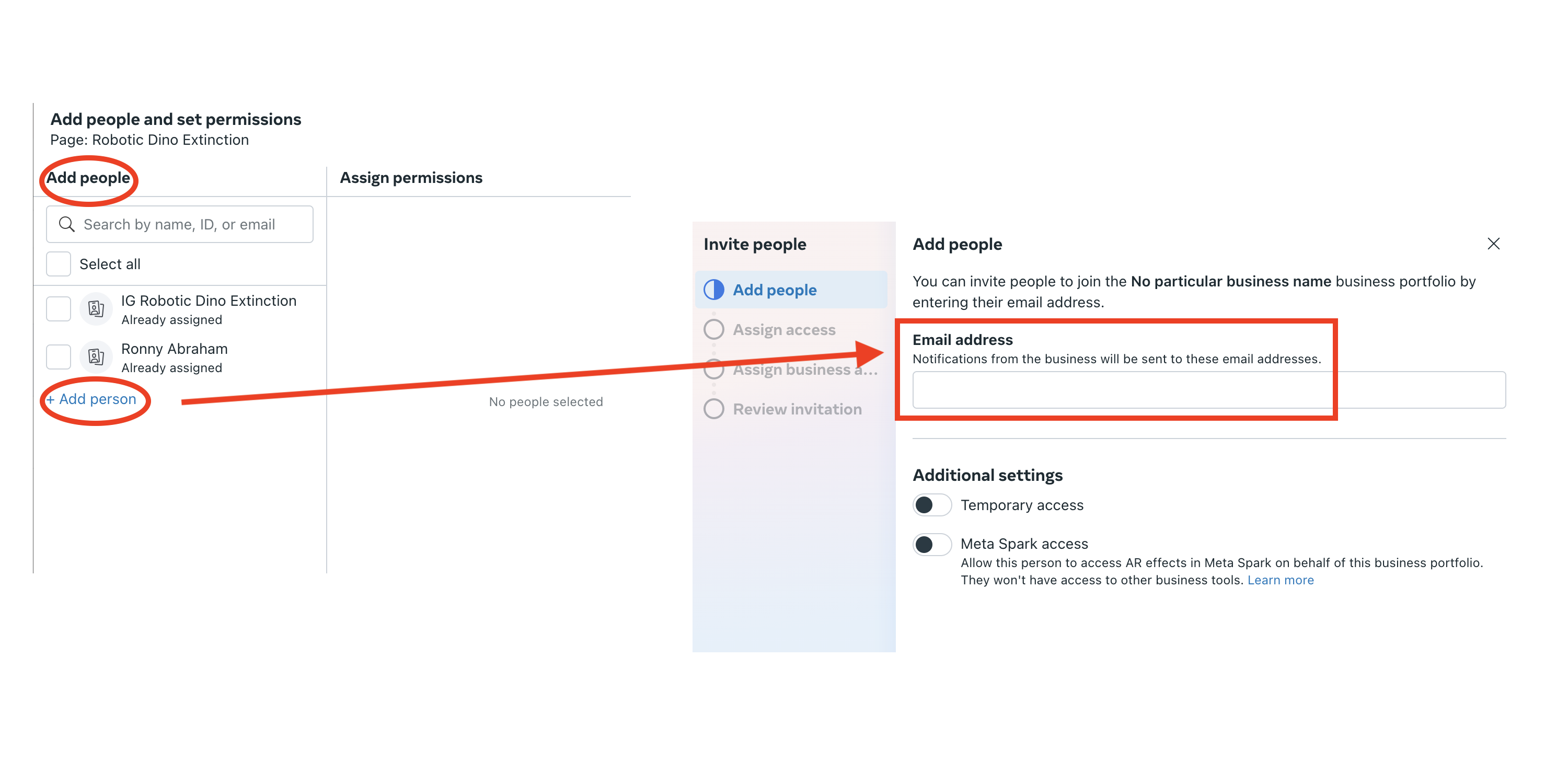
- Assign level of access
- Assign business assets
- review invitation and send invitation